

Card payments at checkout with Stripe
Let customers pay by card at checkout
Card payments through your own Stripe account, paid straight to you.
What it does
- Connects your own Stripe account, so card payments go to your Stripe balance
- Shows card at checkout only when both the secret key and the webhook secret are saved
- Marks an order paid when Stripe confirms the payment
- Can run alongside cash on delivery, or replace it
How it works
- Get your Stripe keysIn your Stripe dashboard, copy your secret key and create a webhook for your store.
- Save both in BiizayIn Settings, open Payments and paste the key and the webhook secret.
- Take card ordersCard appears at checkout and paid orders are marked paid automatically.
An order comes in. You see it first.
A new website order arrives at the top of the Orders list, the count waiting for you goes up, and the order opens ready to confirm.
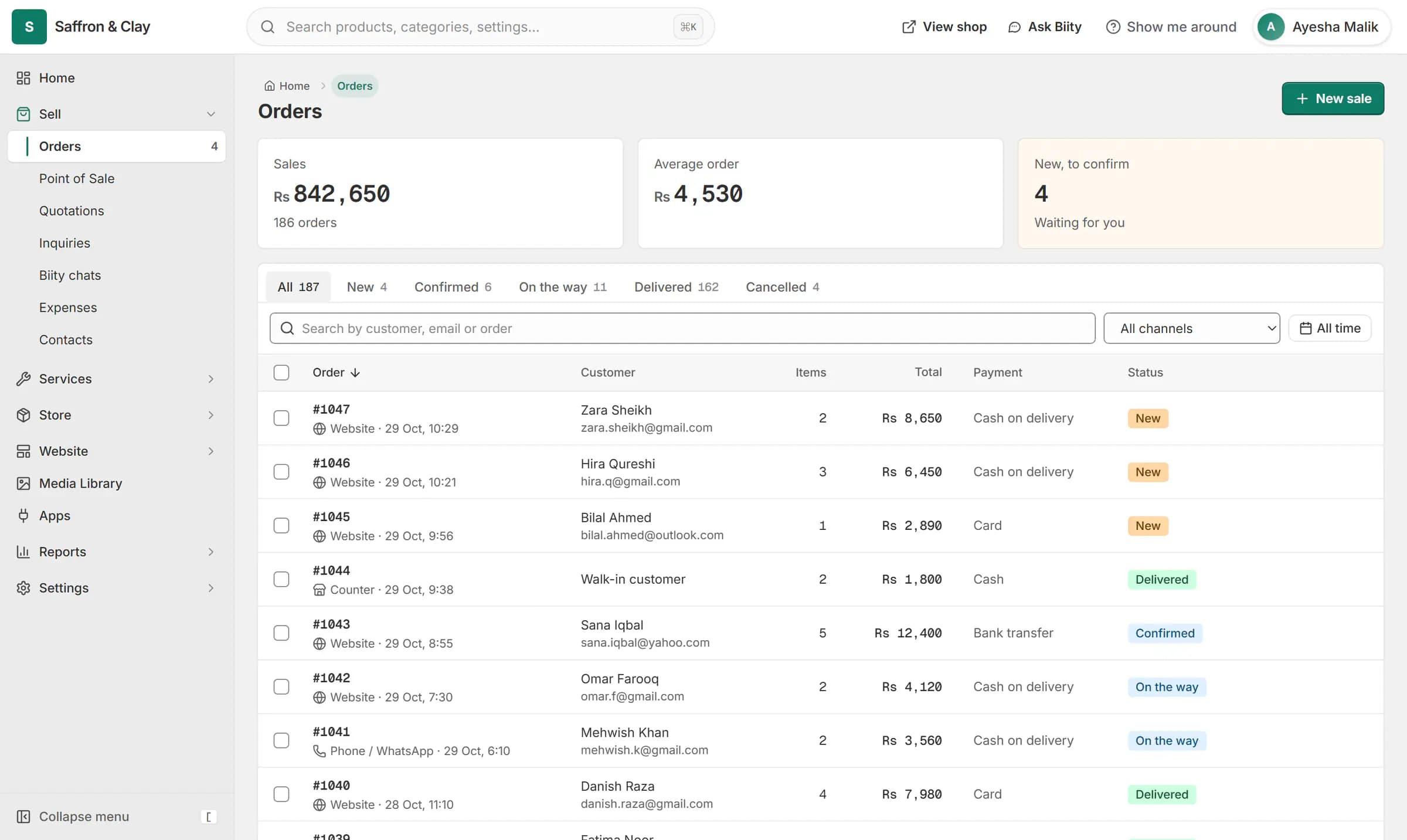
A new website order arrives at the top of the Orders list, the count waiting for you goes up, and the order opens ready to confirm.

Why both values matter
Stripe tells your store a payment succeeded through a webhook. Without the webhook secret, Biizay could not trust that message, so a customer could be charged and the order never marked paid. That is why card only switches on with both values saved.
Works with
- Cash on delivery (COD) for your online store | BiizayCustomers order now and pay in cash when the parcel arrives.
- Shopping cart and guest checkout for your store | BiizayA cart and a guest checkout that offer only the delivery and payment options you set.
- Order management for online and counter sales | BiizayEvery order from your website, counter and phone in one list you can work through quickly.
- Stripe app: card payments at checkout | BiizayCard payments through your Stripe account, set up in Payments.
- Online store for clothing and retail shops | BiizayOne stock, one portal for a clothing or retail shop selling online, on social media and at the counter.
Questions
Who receives the money?
Your own Stripe account. Biizay does not hold your card payments.
Why doesn't card show at checkout?
Card shows only when both the Stripe secret key and the webhook secret are saved in Payments.
Can I turn off cash on delivery?
Yes, once card is fully set up. A store always keeps at least one way to pay.
Try it on your own store.
14-day Pro trial, no card. Everything is in the same account.