
Remove background from product photos online
Get clean product photos without another app
A photo editor in your media library: crop, light, background removal with refine, erase and upscale.
What it does
- Crop, rotate, straighten, resize and fix brightness, contrast and warmth
- Remove the background, then paint over any edge to keep or remove it
- Erase a mark, a price sticker or a stray object from a photo
- Upscale a small photo so it holds up on a product page
- Add your logo, and always save as a new copy so the original stays
How it works
- Open a photoChoose any photo in your media library, or from a product's photos, and press Edit.
- Make your changesUse the tools along the side. Hold Compare to see the photo as it was.
- Save a copySave, and the edited photo is added as a new file. The original is never overwritten.
A new look, and nothing else moves.
A new theme is chosen and applied. The products, orders and pages stay as they are.
Choose a theme
- 1. Theme
- 2. Colours
- 3. Fonts
- 4. Review
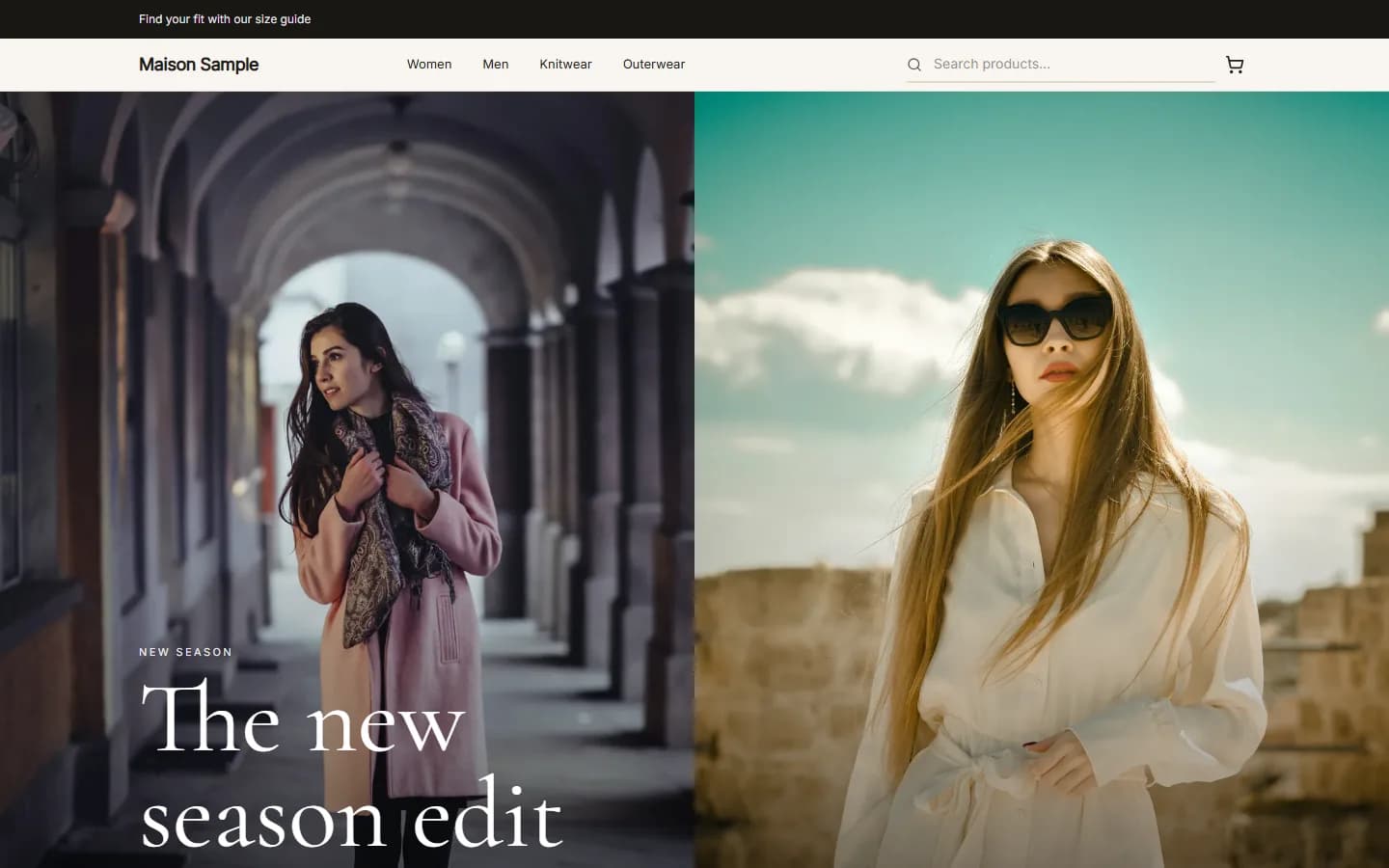
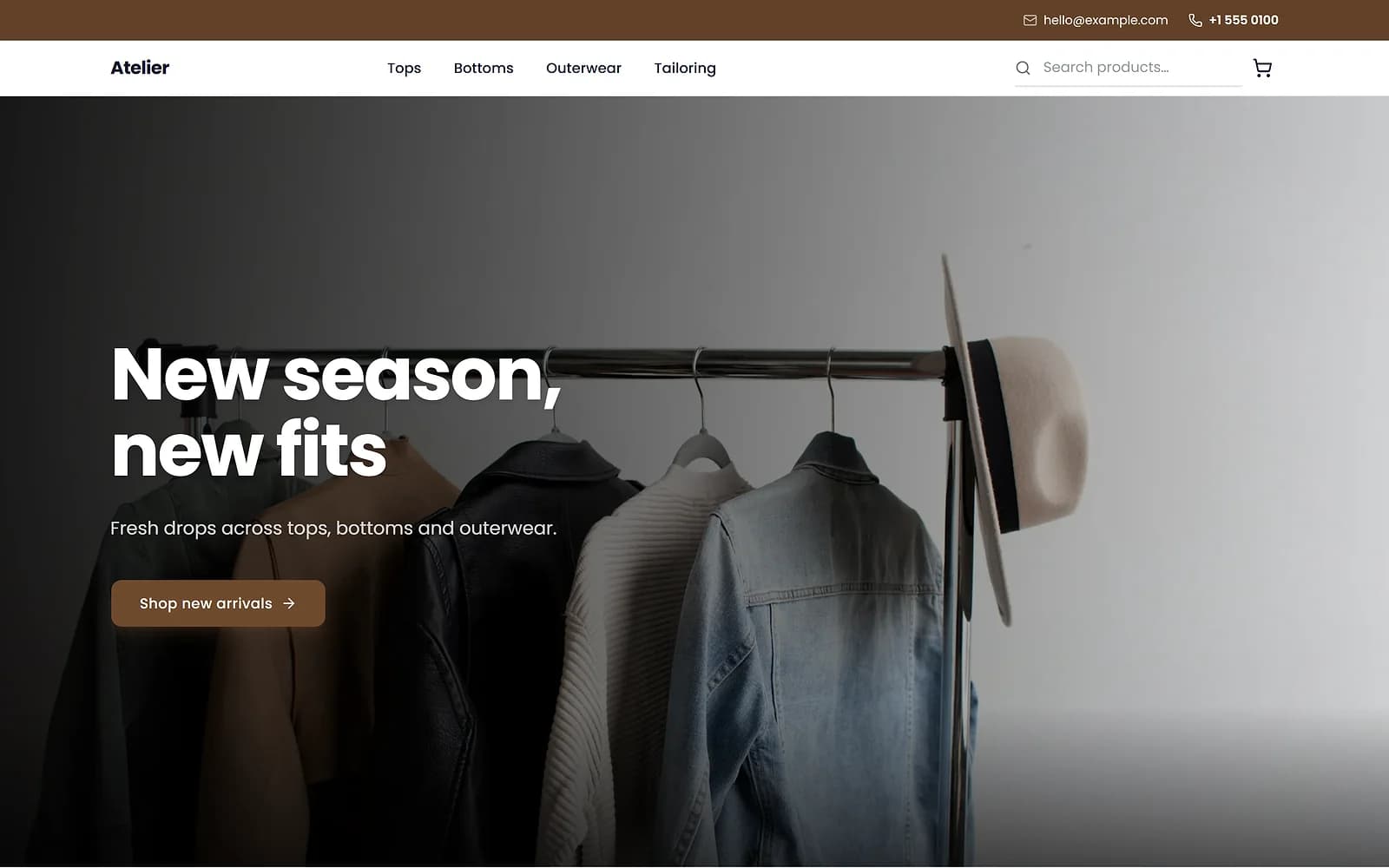
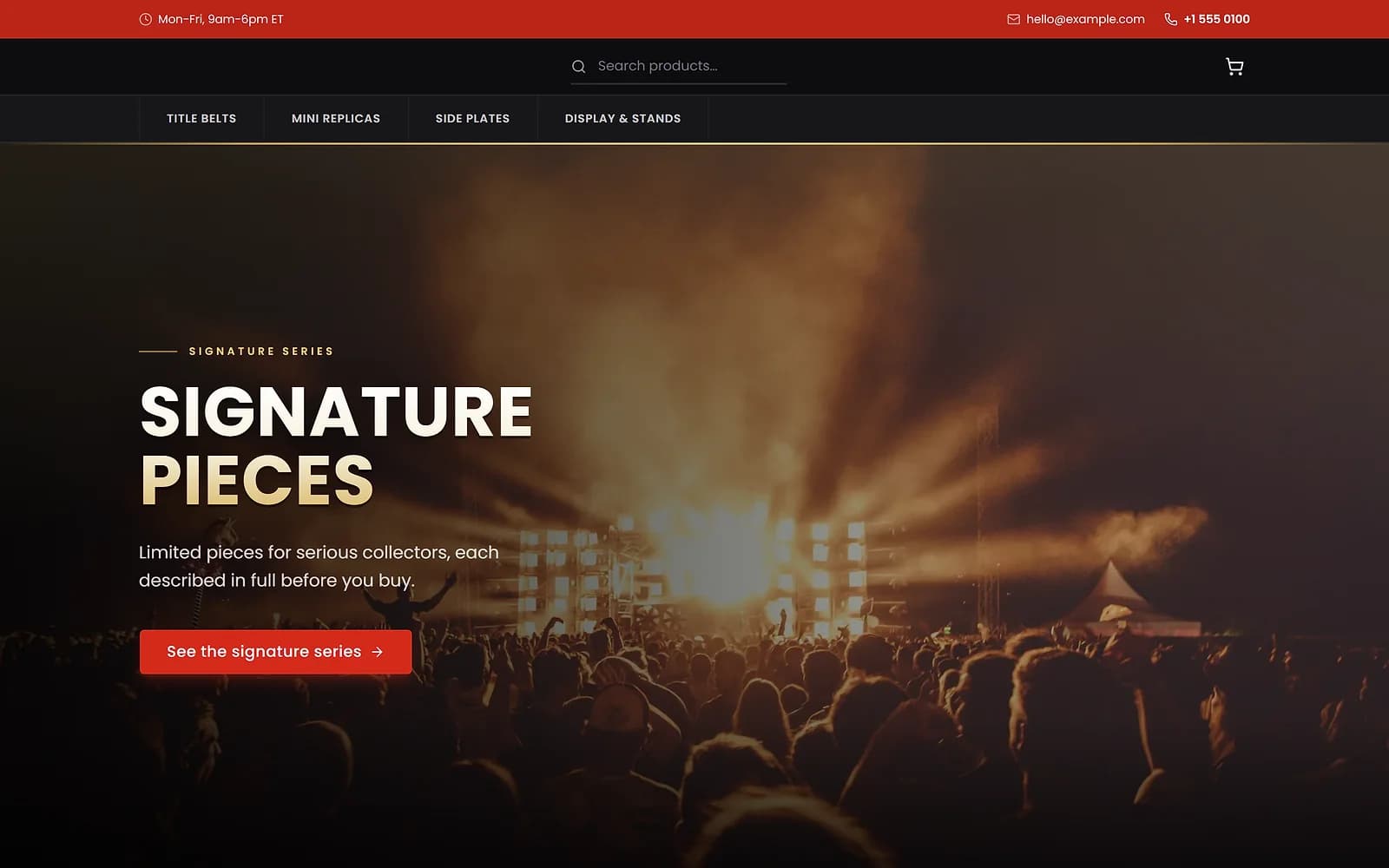
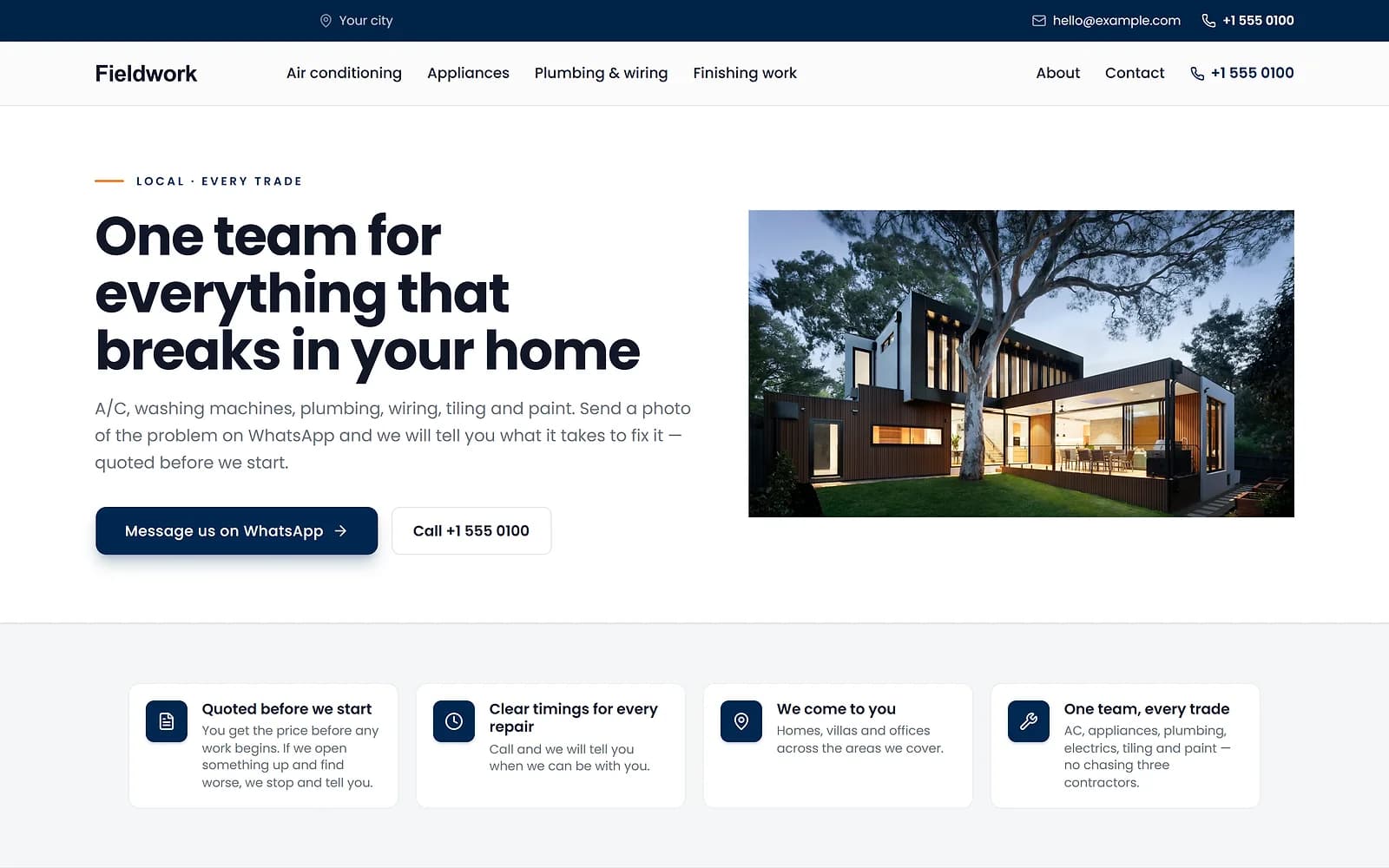
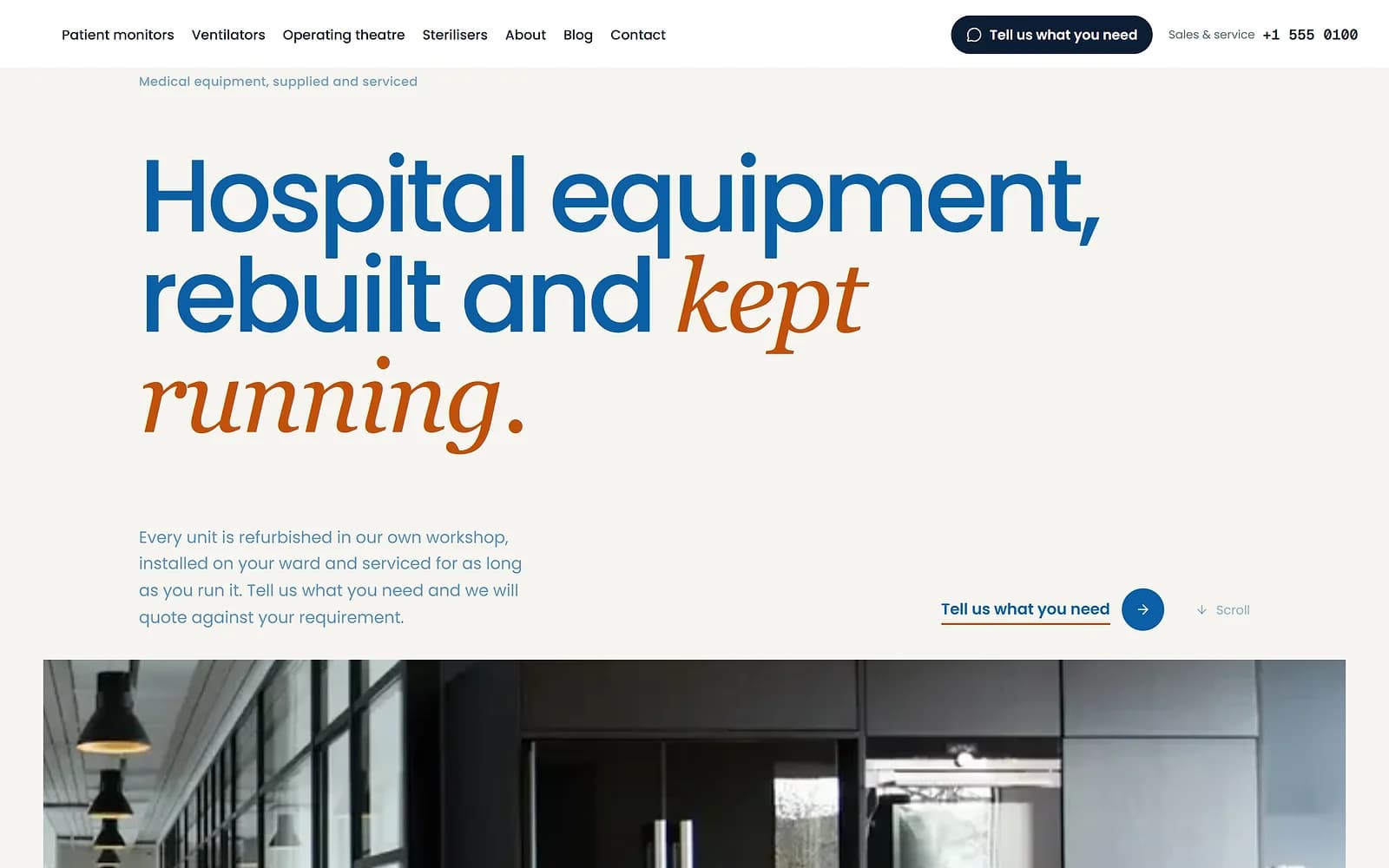
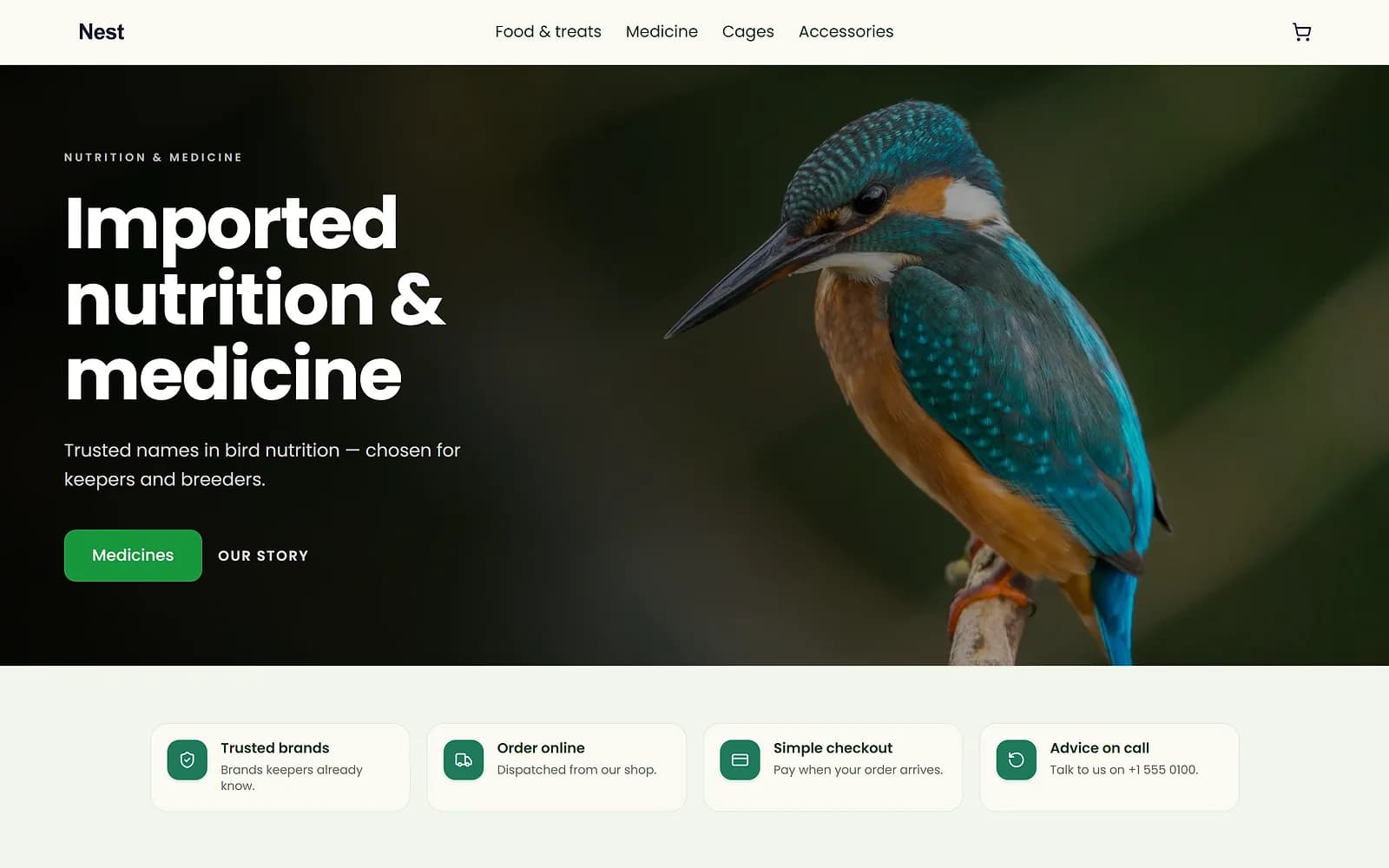
A new theme is chosen and applied. The products, orders and pages stay as they are.
Remove the background from a product photo
Background removal cuts your product out so it sits on white or on a transparent background. If an edge comes out rough, Refine lets you paint over the part to keep or to remove, and the cut-out is made again with your marks.
Crop, straighten and fix the light
The everyday edits work in your browser and show the result as you move a slider: crop to a shape, turn and straighten, adjust brightness, contrast, warmth, shadows and highlights, or press Auto fix.
Erase marks and upscale small photos
Brush over a sticker, a scratch or something in the background and Erase fills it in from what is around it. Upscale makes a small photo larger and sharper. It cannot make tiny printed text readable, so check labels after upscaling.
Works with
- Media library for your shop's images and files | BiizayEvery image you upload, in one place, reusable across products, pages and posts.
- Video editor with Urdu and English captions | BiizayEdit shop videos in your media library: trim, cut, join, text, end card, speed and auto captions in Urdu or English.
- Schedule Facebook and Instagram posts for your shop | BiizayPost and schedule to your Facebook Page and Instagram from Biizay, with templates, designed images and reels.
- Online store builder for small businesses | BiizayA complete online shop on its own address, ready for products the day you sign up.
- Online store for clothing and retail shops | BiizayOne stock, one portal for a clothing or retail shop selling online, on social media and at the counter.
Questions
How do I remove the background from a product photo?
Open the photo in your media library, press Edit, then choose Background. When it is done, use Refine to paint over any edge that needs fixing.
Does editing change my original photo?
No. Every edit is saved as a new photo. The original stays as it was, and pages using it keep showing it until you pick the new one.
Can I get a white background?
Yes. After removing the background you can keep it transparent or place the product on a plain colour such as white.
Which photo files can I edit?
The photos in your media library, such as JPEG, PNG and WebP files.
Try it on your own store.
14-day Pro trial, no card. Everything is in the same account.